Affiliations are users that are "connected" with you. This means that you are able to invite that user to cases, and therefore make transactions, and send messages to that user. Users that you've invited are automatically affiliated with you.
To view your affiliations, go to the "Profile" tab and press the "Manage Affiliations" button at the bottom of the page. This will take you to the "Manage Cooperating Members" page. On this page, you can view, search within your affiliations, add a new affiliation, and view pending affiliation requests.
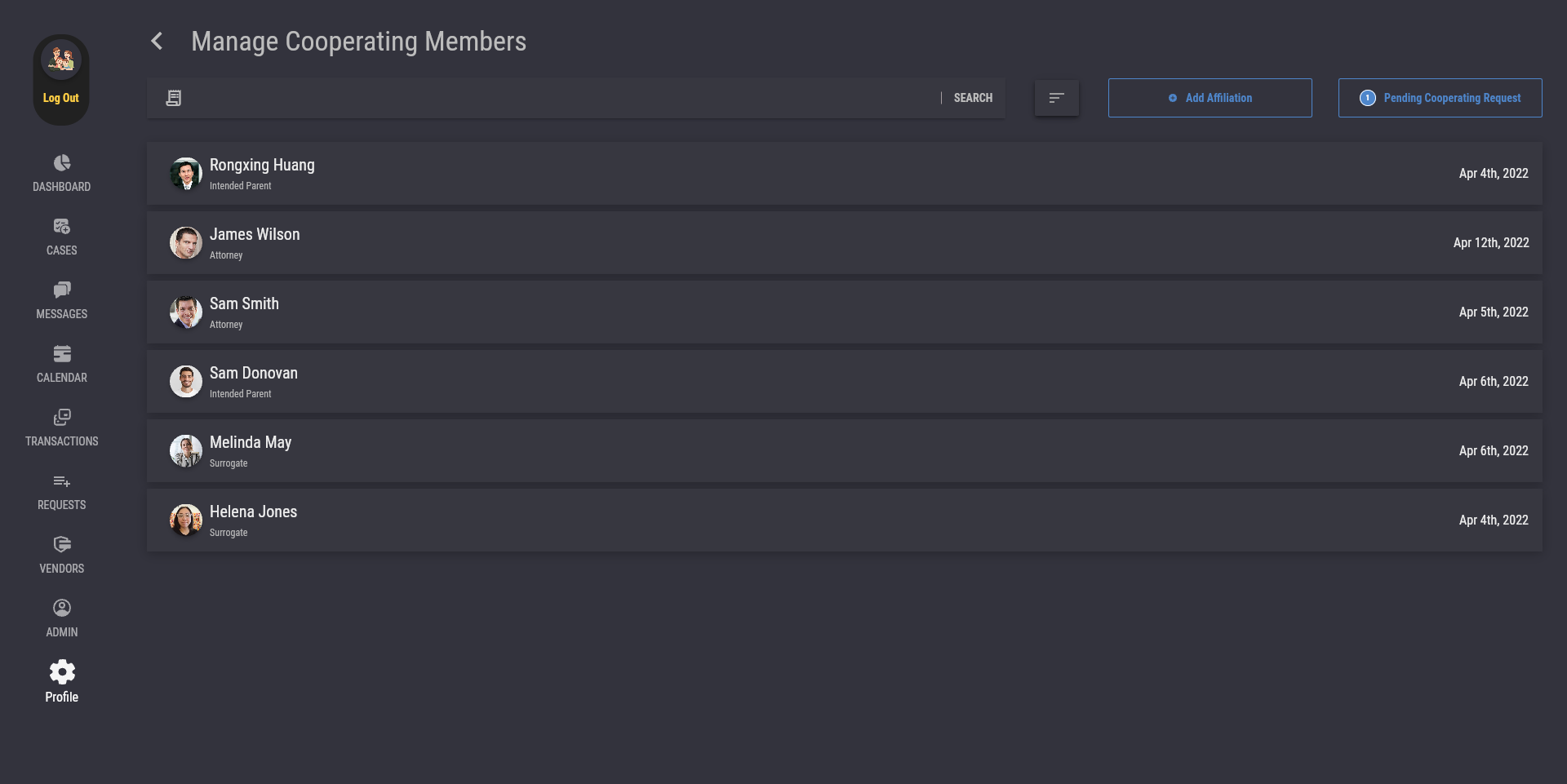
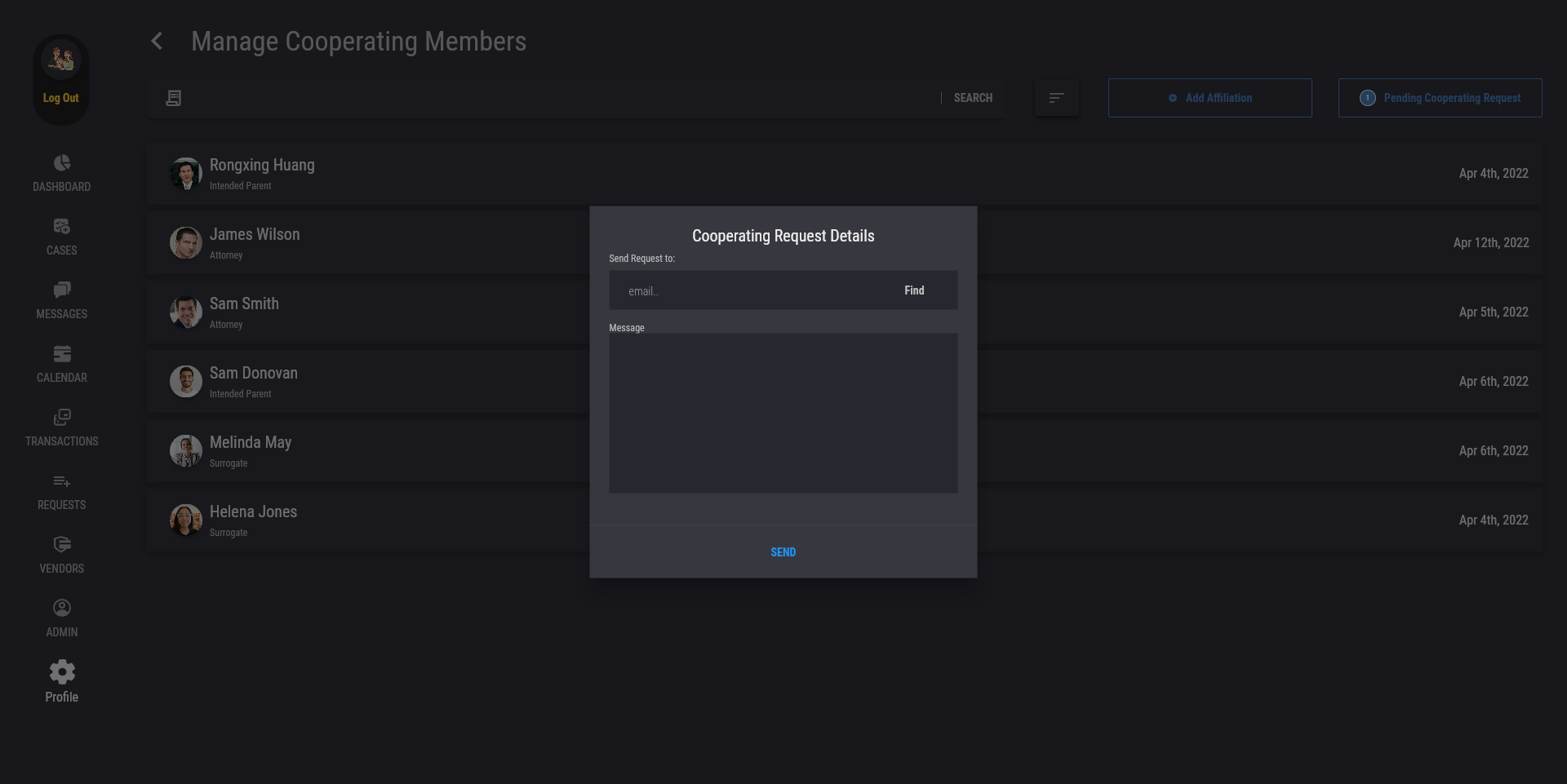
To add a new affiliation, press the "Add Affiliation" button. This will open the "Cooperating Request Details" dialog, where you can select look up a user to send an affiliation request to and attach a message. Press "Send" to send out the affiliation request.
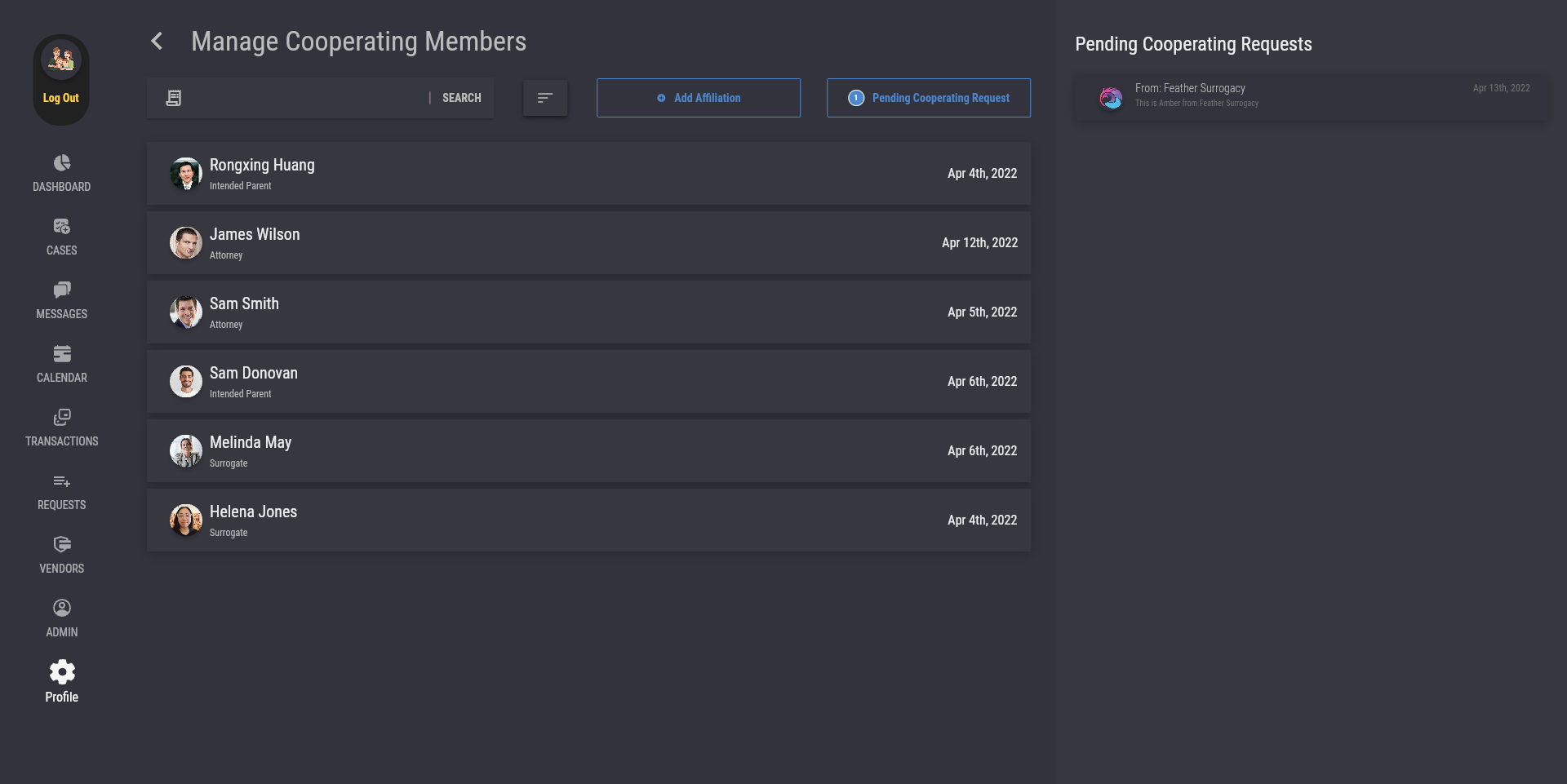
To view your pending affiliation requests, press the "Pending Cooperating Request" button. If you do not see this button, it means that you currently do not have any pending affiliation requests. In desktop mode, your pending affiliation requests will show up in the right sidebar. In mobile mode, a new page will open instead.

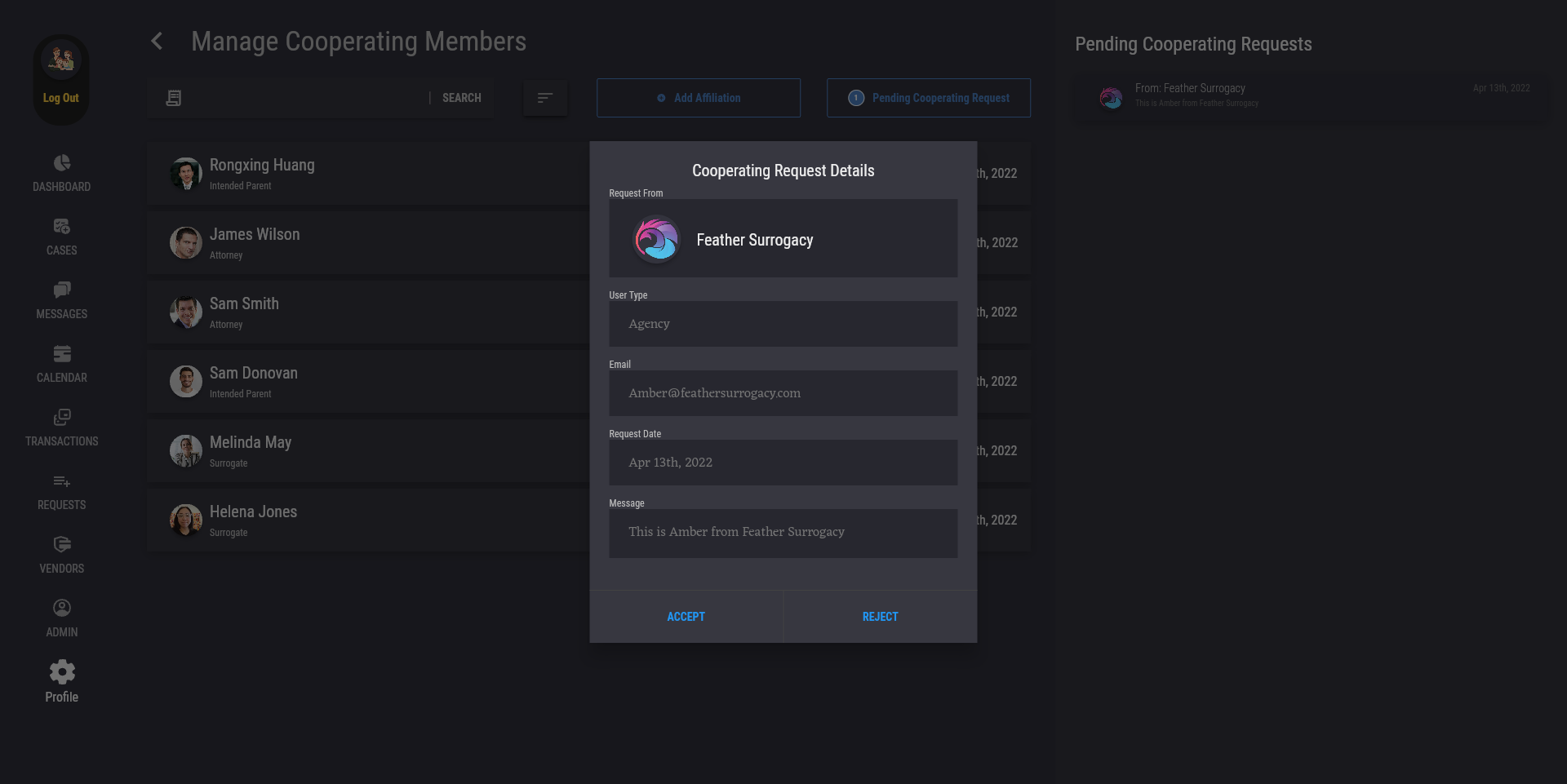
To interact with your pending affiliation requests, press a request to open the "Cooperating Request Details" dialog. After verifying the request, press "Accept" to accept the request, or press "Reject" to reject the request.
|
Rate this Topic:
|
|||
|
